

Hi ,
This is my sequel post from the https://junooni.wordpress.com/2010/04/15/visio-2010-for-sharepoint-workflow/,
As the user handed over the .vmi file to SharePoint Developer or Power User ( Mr X :))
Mr X opens the Microsoft Office SharePoint Designer 2010, choose the option Import Visio Workflow

Now SharePoint Designer will show the Dialogue Box to Browse for the .vmi File, 
clicking on next get to Mr X choose the List to attach with this workflow, in this case it will be attached with Shared Document.

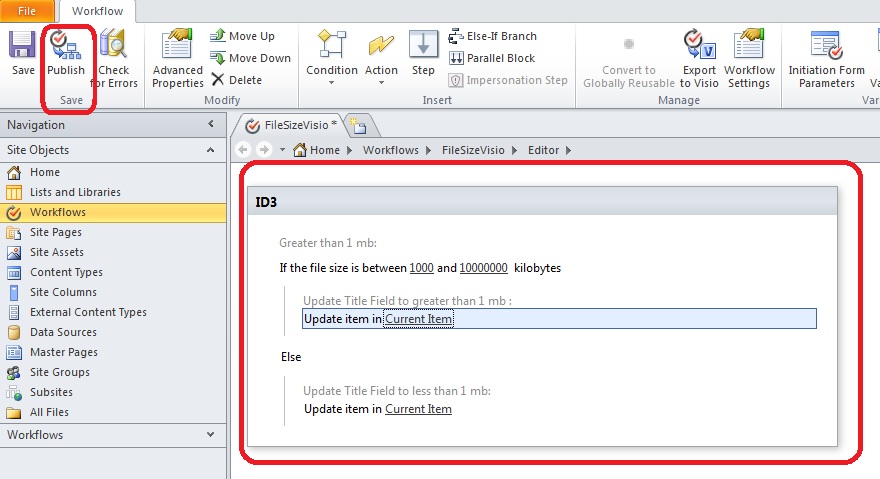
once clicked finish, SharePoint Designer 2010 creates a following workflow in editable mode.

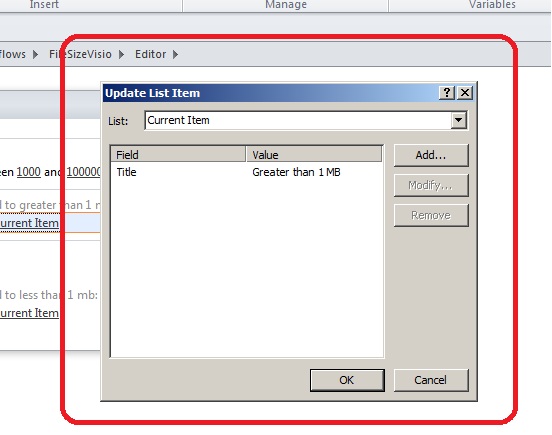
As you can see from the above picture, Mr X has to make some changes like to mention the file size range, and to choose the Field title to update the Text
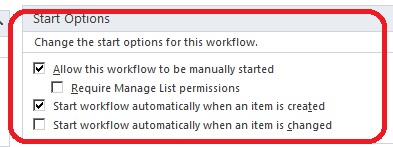
Before Publishing this workflow to the SharePoint site a Mr x select the following option in order to start this workflow automatically when the document is uploaded.
With all set to publish, Mr X clicks on the Publish option present in the Ribbon.
Now Mr X wants to see how this workflow actually work, he goes to desired Document Library. Upload a document 
as you can see, Mr X choose the document which has size more than 1 MB.
Now here it is Mr X, User are very happy to see that the workflow actually works the way they want,

Enjoy SharePointing 🙂
 Shakir's Blog
nice effort 🙂
thanks